The Daylight app icon: a sun on a horizon beneath a sky that cools as it rises.

Your screen, through the day.

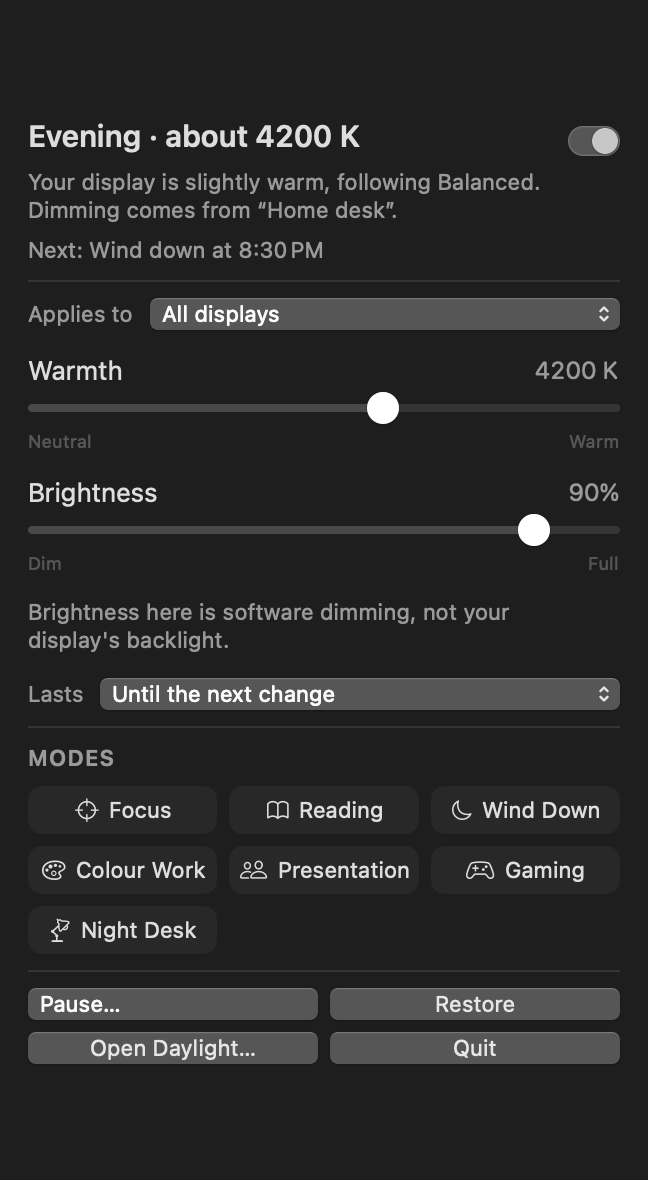
Daylight shifts your display's warmth and brightness on a schedule you set: gradually, predictably, and out of the way. It lives in the menu bar, works entirely offline, and tells you exactly what it is doing and why.

Requires macOS 14 or later. Not yet notarised: one extra step on first launch.

Below is the app's actual schedule engine, not a picture of it. Pick a preset, choose your city, and drag through the day.

The interactive version needs JavaScript, and it has not run here, so it is not below. Everything else on this page, including the download and what the app does and doesn't claim, is unaffected.

A day on the Balanced schedule The preset Daylight ships with. Drag to move through the day.
— — — —

    Open a step to change when it happens and what it does.

    What that looks like

    An approximation drawn in this browser by multiplying the colours on screen, which is the same operation Daylight performs, but on this box only. A web page cannot change your display; the app does.

    Take it with you

    Daylight imports the file this writes, and a link carries the whole schedule to anyone else.

    The same schedule, across the year Sunrise and sunset where you are, every day. Drag to move through the year.
    — —

    • Screen colour, warm to neutral
    • Sunrise and sunset
    • A step held at its limit

    This is the app's own schedule engine and colour maths, running the presets it ships with. Pick a city and the sun-following schedule uses your real sunrise and sunset, calculated here, with no network request.

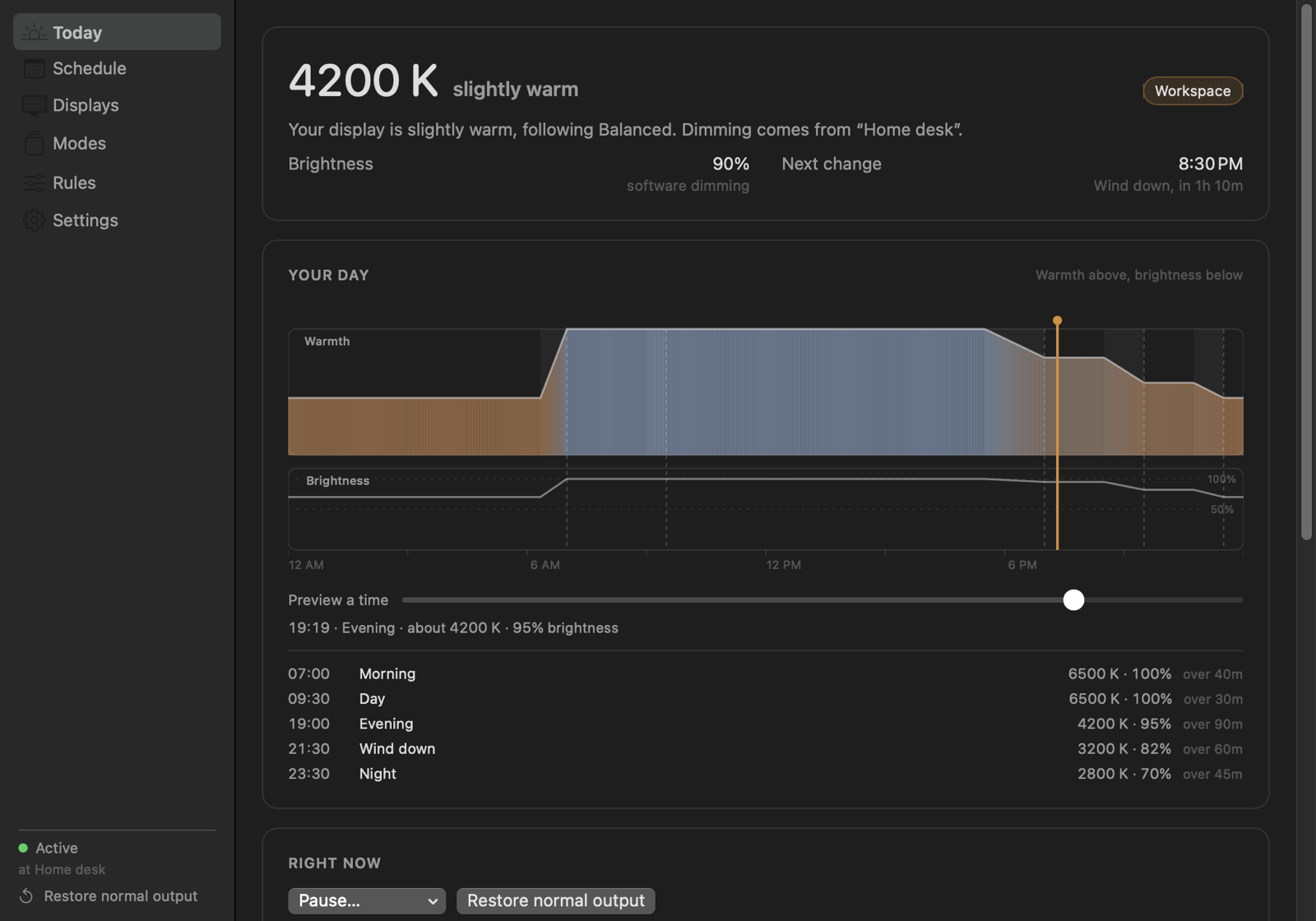
    Daylight's Today view: a large reading of 4200 K described as slightly warm, a sentence explaining that the display is following the Balanced schedule, and a 24-hour timeline showing warmth and brightness curves with the current time marked.

    It tells you what it is doing

    Most of the work in Daylight went into being explainable. Every state has a sentence attached, in plain language, naming whatever is responsible for it.

    Switch layers on and watch them argue

    The highest layer that speaks about a control wins it, and warmth and brightness are decided separately, so a rule that only dims cannot quietly discard your schedule's warmth. The six layers and the order below are the app's own; the little schedules and rules attached to them are examples, so there is something for the resolver to decide between.

      That sentence is not written for this page. It comes from the same resolver the app runs, checked against it across every combination of the six layers.

      A ladder, not a pile of rules

      Six layers, a fixed order, no user-assignable priorities. A rules system you can predict beats one you can fully rewire, and the ladder is printed in the app with the active layer marked: the same one you just used above.

      Three levels of certainty

      Daylight distinguishes what it asked for, what macOS accepted, and what it could read back and confirm. Each display reports which of the three applies. An API returning success is not evidence that anything changed, and the app does not treat it as such.

      It notices the competition

      f.lux, Night Shift and similar tools write to the same colour table. Daylight reads back after every write, and when something else has overwritten it, it says so rather than silently losing. It will not fight another app, and will not disable one behind your back.

      The details that took the longest

      Schedules that survive real life

      Daylight-saving changes, time-zone moves, clocks corrected by hand, schedules that cross midnight, night shifts, non-Western weeks, polar day and polar night. Anchors follow the clock; fades follow elapsed time. Getting that backwards put the whole schedule an hour out on a 23-hour day: a test now pins it.

      Sunrise without a permission prompt

      Solar times are computed on your Mac from a place you choose: 101 cities built in, or coordinates. Daylight can suggest a starting point from your time zone, which is a setting rather than a position. It never asks macOS where you are and makes no network requests.

      Displays remembered properly

      Settings key to a durable identity, never a display index: indices are reassigned on every dock and wake. Two identical monitors that genuinely cannot be told apart are reported as ambiguous instead of guessed at.

      Fades paced by perception

      Interpolation runs in mired rather than kelvin, because 2000→3000 K is a large visible change and 8000→9000 K is nearly invisible. The write rate is derived from how much the value actually moves, so a 90-minute ramp writes about once a minute instead of once a frame.

      It refuses a suspicious baseline

      Before adjusting anything, Daylight captures what "normal" means for a display, and validates it. When f.lux was running during development the table read back as R 1.00 / G 0.36 / B 0.10; adopting that as neutral would have baked another app's tint in permanently. There is a test pinned to those exact numbers.

      Getting out of the way

      ⇧⌥⌘R restores normal output from anywhere, with no permissions required. Quitting restores your displays. If the app is force quit or crashes, macOS restores the colour table itself: verified under SIGKILL, which is why Daylight ships no watchdog helper.

      The Schedule view: a draggable 24-hour timeline above a list of anchors, each with editable time, warmth, brightness and fade duration.
      Drag the timeline, or type exact numbers. Anchors are keyboard-operable: arrow keys move them by five minutes.
      The Displays view, listing each display with its warmth, dimming, colour control support, hardware brightness availability and the confidence level of the last change.
      Every display reports what it actually supports, and how confident Daylight is that the last change took effect.

      What it doesn't claim

      This is a comfort and routine tool. It is not a medical one, and the wording throughout the app is careful about the difference.

      • It does not prevent eye damage, treat eye strain, or improve your sleep.
      • There are no invented "circadian", "eye health" or "melatonin" scores. There is no score of any kind.
      • Temperature values are approximate display targets, not measurements of emitted light.
      • What it calls brightness is software dimming: it lowers the values sent to the panel. It is not backlight control, and macOS gives applications no public way to change a backlight. The app says so wherever the word appears.
      • It does not calibrate your display or make its colour accurate, including in Colour Work mode.
      • Visual comfort depends on more than colour: brightness, glare, text size, distance, how long you have been working, and the light in the room all matter too.

      For something evidence-based on sleep habits, the US National Heart, Lung, and Blood Institute is a reasonable place to start.

      It stays on your Mac

      No account
      No network requests, ever
      No location permission
      No analytics or telemetry
      No screen contents or keystrokes
      No camera, ever

      Settings live in one readable file you can export, import, or delete. History is off by default, and switching it off deletes what was kept. If you turn on app rules, Daylight reads the identifier of the frontmost application while deciding what to do and keeps no record of it.

      Download

      Daylight 1.0.0

      macOS 14 or later · Apple Silicon & Intel · 2.1 MB

      Download

      SHA-256 8ec455957faa47e78f0676ece6bc5ddbb4901e0c81cd2be4a6347b6b8bb4dcae

      First launch takes one extra step

      Daylight is signed, but not notarised by Apple: that needs a paid Developer ID, and this build does not have one. macOS will refuse to open it on the first attempt. That is Gatekeeper doing its job, and you should be sceptical of any download that asks you to work around it.

      Two honest options:

      1. Open it once from the Finder. Unzip, then right-click Daylight.app → Open → Open. macOS remembers the decision. If it refuses outright, remove the download quarantine flag first:
        xattr -d com.apple.quarantine ~/Downloads/Daylight.app
      2. Build it yourself from the source below, which sidesteps the question entirely: it is one command and needs no Xcode.

      Build from source

      No Xcode required. Command Line Tools is enough. There are no third-party dependencies to fetch.

      ./Scripts/build-app.sh release && open build/Daylight.app

      Download the source (209 KB) : 263 tests included. Run them with swift build && ./.build/out/Products/Debug/daylight-tests.

      Two things that are not finished

      Multi-display behaviour has never run on real hardware. Every path is written and covered against simulated devices, but only one display was ever attached during development. Run Daylight --diagnose to see what your own displays report.

      External-monitor backlight control over DDC has never exchanged a byte with a monitor. Its packet framing is unit-tested; the hardware path is unproven. It is off by default.